Friday, July 24, 2009

SU! Retired Stamp Sets/Paper Packs for Sale!

Not sure if you all know or not, but Stampin' Up! is releasing their new catalog in July...that leaves just two more weeks until all the new goodness can be purchased!

SU! has gone back to the one catalog a year; I like that idea, it gives me more time to absorb all of the greatness in the catalog before it retires and goes away!

Because of the up and coming new catalog, I have a lot of retired stamp sets in my stash that I would love to sell...to make room for the new! All sets below are $6 (+shipping), if you want more than one, I'll give them to you for less than $6/each! Also, I have a bunch of unopened packs of soon to be retired Designer Series Paper that is up for grabs as well. I will sell that for $5/pack (+shipping).

PLEASE contact me if you see anything that you may like and think that the price is too high; hagglers are welcome! Paypal payment is preferred, but if you do not have Paypal, we can work something else out. I look forward to hearing from you!


  • A Tree for All Seasons

  • Be Happy

  • Delight in Life

  • Kanji

  • Lexicon of Love

  • Reason to Smile

  • Some Like it Hot

  • Winged Things
  • Snow Jumbo Wheel
  • All About Christmas Jumbo Wheel
  • Hollyhock Jumbo Wheel
  • Birthday Jumbo wheel
  • Farmyard Jumbo Wheel
  • Snowflake Standard Wheel
  • Paw Tracks Standard Wheel
  • Daisy Field Standard Wheel

Paper (all unopened packs)

  • Holiday Treasures

  • Taste of Textiles

Classic Ink Pads

  • Riding Hood Red

Saturday, July 18, 2009

Lesson 13 - Photo Grid


Today's class revolved around creating a photo grid. Did you know that if you have the move tool selected around a layer and you Alt+Click, that it automatically duplicates that layer for you? SWEET! You can also have multiple layers selected and it will copy them all. Makes it pretty easy for creating a grid. Other than that, today's class was focused around clipping masks and using a piece of a brush to add just a little zing to a photo.

Friday, July 17, 2009

Lesson 12 - Storyboard


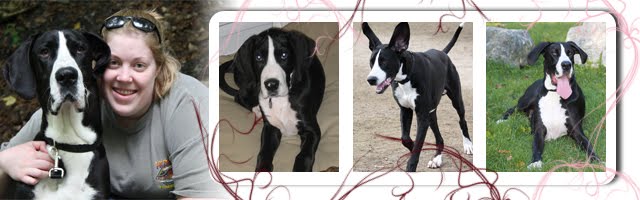
So...today's class focus was a storyboard. I'm sure some (if not all) of my reader's know that Titus has a "girlfriend" at doggie daycare, K9Kaos. Her name is Fifi, she's exactly a month older than he is, and she's a harlequin great dane. I personally don't have any photos of her, so I stole some from the daycare site (they take photos daily of the dogs and post them online for the owners).


What we did was create a blank canvas of 7x14 inches. We started by using the Rectangle Tool, making sure that our foreground color was something other than white (white on white...not so easy to find). We filled it with our color, by using the paint bucket tool, and then duplicated that layer two times to have the three panes of the storyboard. We moved the two new boxes to approximately where they should lay on the canvas (eyeballing the placement). Then, we selected those three layers, and aligned them by their top edges and distributing them by their horizontal centers. We also moved the boxes more towards the top, to leave room for the font in the bottom right. After setting the stage, we selected the layer for our left most box, then moved in our first photo. We clipped those two layers together (holding alt key and clicking between the layers) and then resized the photo to fit the "box" by dragging the corners. Rinse, repeat for the following two boxes. Finally, create a new layer for the text, select a color, and type. The text used on this photo is called Renaissance.


Do you think it's too cheesy?

Thursday, July 16, 2009

Lesson 11 - Selective Coloring


I've always wanted to know how to selectively color a photo and Jessica made it so simple to learn how today! We added a Hue/Saturation Adjustment Layer on top of our photo, turning it into BW/Sepia and then made sure our color palette was black in the foreground, and using a brush, colored "over" the parts of the photo where we wanted the color to come back in. Easy as pie! I didn't have the best photo to do this with today, but it at least gives an idea of the technique.

Wednesday, July 15, 2009

Lesson 10 - Project (Bringing it Together)


So nothing new learned today; just a way to bring together multiple techniques that we've learned in the class thus far. Today we focused on Adjustment Layers, Clipping Mask, Textures, and adding of a font using the font tool. I also added a slight burned edge to this photo, but reduced the opacity of the layer so it didn't make the photo too dark. LOVING this class!

Tuesday, July 14, 2009

Lesson 9 - Burned Edges


So any darkroom developer can burn the edges of a photo ever so subtley so that the focus is brought on the subject of the photo, right? Well today, we learned how to do that in PhotoShop. First, we added an Adjustment Layer of "Layers". Then, selecting our Gradient Tool, setting it on Radial-> Multiply and hitting D, then X on the keyboard (D sets us to white/black, X sets us to black/white), we drew a gradient from the center out. Finally, using the brush tool in a large size, we drew on that adjustment layer to bring out any focal points that we wanted to remove that gradient from (faces are a great example). Voila!


Not so sure what I think about the technique; I realize the reason for doing it, but I didn't really like the way it came out on my photo. I guess I'll have to try it again!

Monday, July 13, 2009

Day 8 - Adding Type


Today's class focused on adding type to a project. Jessica had us download a free font, called Karabine, to use on a photo that had some wideopen space (and it also works best when the subject is off center). I chose, as you can see, a photo of Elizabeth and Joyce that I took of them on Pelican Beach in Belize. I love this photo...it's not posed and it's the love between mother and daughter.


Aside from the type, I also added a folded paper like texture to the photo. I really like how it warmed the photo up!

Sunday, July 12, 2009

Project 6 - TTV Images


I put a TTV layer on top of my original color photo that I took of the T in Boston a few years ago. Set the Blending Mode to multiply after I'd set the Sepia (Lesson 3) tones to the photo and voila! I like how I resized the image to a square beforehand. Apparently TTV is like the old school type of image and it does look old school...kind of like a polaroid!

Project 5: Textures


In this class, we used three different layers of textures to create an "aged" type of look to a photo. Jessica's word to the wise was that textures can be used everywhere, but when you're using it on a portrait of a person's face, it gets a little dicey.


Anyway, I chose a shot of an aerial of Warren's family farm. Warren's had this photo FOREVER and I had it high-res digitized for him last year. I added a brown paper bag texture, a grunge texture, and a film texture. I like how, just like Project 4, it gets an aged/crinkled type look (but in a different way, of course).


Project 4 - Clipping Masks


Ever seen a photo with a really cool edge around it and wonder how it was done? The answer: Clipping masks. Apparently, if you find a mask (edge) that you like, put the photo layer on top of the mask layer, hold down Alt and you mouse-hover over the line between those two layers and click, the photo takes on the edge of the mask.


SO COOL! It's like magic!

Project 3 - Vintage, Hand Tinted Look


In the third class, Jessica focused on using two Hue/Saturation layers on top of the photo. First, doing a layer with a 50-60 Saturation and then doing another Hue/Saturation Layer on top of that with a Hue of 35 and a Saturation of 25. Doing this "recipe" as she refers to it, on this layer, adds a Quick Sepia tone to any photo, and I like it!


You may notice this photo, as the original was taken a few summers ago when I visited Jenni in Virginia. Basically what I've done to the photo is tone down the color (a lot) so it looks older and more vintagey.


What do you think?

Project 2 - Photoshop Brushes


On to Project 2 (Day 2) of my class at Jessica Sprague! I find that her videos are amazingly easy to follow and they are only about 7-8 minutes long, which means that I can follow through on one class without devoting a ton of time to it! Also, she's given us enough free goodies that we can play around with items outside of the one example that she builds in the video. I like that!


I thought that an image of Jenni and Jason with two different brushes (Frame/Celebrate) would be appropriate since they just got married! They're currently in the Mediterranean doing a cruise for their honeymoon; how jealous am I?

Project 1: Frame-Up and Word-i-fy


So Jessica Sprague was offering a free Photoshop class called Photo Editing: Frame Ups & Special Effects that I signed up for. It's in celebration of her being in business for a while, and I thought I'd try to catch up this week (I'm a week behind since it started on Monday).


The project for this class was to use any of the Frames and Word Art provided to beautify a photo. I first cropped my photo down to a 5x7 (so I could send it directly to a printer) and then did two more steps; one for the PNG Frame and the other for the word art. Easy as pie!


Isn't he a cutie?!?