Warren and I headed back up to Northern Maine this weekend for Kenny's wedding. Warren and I switched off on taking photos, as of right now, we only have one SLR body. I took this picture and (hate to be biased) it's one of my favorites out of the bunch. This ceremony was the first catholic ceremony I've ever attended and boy was it long! You could tell when Kenny watched Kristen walk down the aisle in her absolutely gorgeous dress the love that he has for her. Warren and I were also lucky enough to be able to stop up to their new house in Holden before the wedding. Kenny gave us the personal tour AND I got to meet Maycie! Such an adorable dog!
Monday, August 24, 2009
Titus and the GTO
Warren went out yesterday to take some photos of the GTO, as a potential buyer is flying in from PA to come and look/buy it today. He showed them to me last night, and I thought it might be fun to use the selective color technique I learned in Jessica's first class to color in the car and leave the rest of the photo black and white (which obviously puts focus on the car). Didn't take me too long this morning to make this idea come to fruition, as the color detail in the car isn't too intricate.
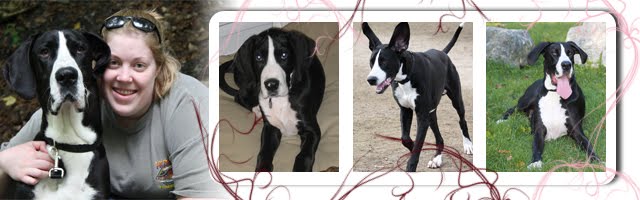
On a side note; isn't Titus handsome? He loves to sit pretty.
Posted by Katee at 7:30 AM 1 comments
Wednesday, August 12, 2009
Brushabilities - Lesson 10
Today we learned how to make our own brush from an image. Jessica provided a leaf image that we first desaturated, and then changed the black level fro 0 to 115. We selected the leaf with the rectangular marquee tool, then edit -> define brush preset, and named our brush. It was that easy! The photo here has the original image on the left (taken by Jessica Sprague) and the brush that I created from that image, stamped in a greenish color. Cool, huh? Jessica also showed us how to manage our brushes loaded in Photoshop and how to export a brush that we've created as an .abr file by going to edit -> Preset manager.
Posted by Katee at 4:40 PM 1 comments
Tuesday, August 11, 2009
Brushabilities - Lesson 9
Today's class was to start off where yesterday's ended. We started with the tag, and then downloaded a stitching brush, provided to us in the class materials. We loaded the brush, and then set the spacing of the brush to around 300. doing the top and the bottom of the tag first, we clicked once (and held), held the shift key and then dragged where we wanted to go. This was repeated for each side of the tag by changing the angle of the brush. A slight 2px drop shadow was added to this layer to give it some dimension. Then, Jessica showed us how, by using the Angle Jitter-Direction type, that you can draw flourishes and hand drawn items with any brush; the brush rotates for you as you draw. Pretty sweet!
Posted by Katee at 5:56 AM 0 comments
Monday, August 10, 2009
Brushabilities - Lesson 7
Lesson 7 was not guided, but instead a challenge from Jessica to take some of the techniques that we've learned thus far and see what we could do. I started with a canvas the size of an A2 card front. I first added a piece of patterened paper to the base. Then, I used a brush to ink the edges all the way around the card, from a color that I sampled from the patterned paper. Next, I added two flourishes (same brush) to give the card a little pizazz. I clipped these three layers together on top of the patterned paper to give some dimension. Finally, I added a quote a clipped a gradient layer to the quote to give the font some texture (color change). Pretty simple, but I like it!
Posted by Katee at 4:49 PM 0 comments
Brushabilities - Lesson 8
Today's lesson focused on making a tag. We used the custom shape tool to create a yield sign, and then used the rectangle marquee tool and put a rectangle at the bottom of that to add to the actual tag. Merging the layers down, the base was complete. We used the elliptical tool (under rectangular marquee) to create the ring hole at the top. Hitting the delete key removed the color. Next, we used a piece of blue digital paper, provided to us in the class. We clipped this down to the tag (Alt+Click). Next, we used two different distressed brushes on the edges of the tag to make the tag look inked on all sides. Finally, we added a flourish to the tag (soft light mode) to add a little pizazz. All of these layers were clipped down onto the tag to layer appropriately (with the flourish going under the inked edges).
Posted by Katee at 4:22 PM 0 comments
Brushabilities - Lesson 5
Day 5 focused on brushes as clipping masks. I used a grungy edged brush for the borders and also used a quote brush that Jessica created for us, for the bottom. I added a little bit of a gradient to the quote to give it that extra zing. I'm not sure what I think about it; I don't think it's very readable in the full size version; so many it just adds more grunge? Just so everyone knows, Day 6 is based on Organization and Day 7 is a self-check, so I may make a project putting a bunch of these techniques together; we'll see!
Posted by Katee at 5:51 AM 0 comments
Thursday, August 6, 2009
Brushabilities - Lesson 4
Today was a very reusable lesson for me. We started with a canvas of a photo size that we had in mind, I started with 5x7. Creating a new layer, we painted it black. Using the rectangle marquee tool, we selected the majority of the canvas, leaving a frame around the outside. Then, we clicked the delete key to remove the inside. Deselecting the selection (control+d), we then used a bunch of brushes to add to the frame: A grungy distressed edge, which we stamped four times (one for each side, using the rotator of the brush tool to make it rotate) and a flourish to add an extra touch). We merged all the layers together, then used the sanding brush to make it all look like it fit together. Finally, I plopped in a picture of Lexie, Suzanne and Chris' new puppy. (She makes the whole project super cute, doesn't she?)
Posted by Katee at 5:59 AM 1 comments
Wednesday, August 5, 2009
Brushabilities - Lesson 3
Today we learned a few interesting things. Did you know that you can use all of your brushes in the erase tool to erase that shape? Pretty interesting when you think about removing/adding color in layers. Today we drew a circle (holding shift to make a perfect circle, not an ellipse), removed the middle portion of the circle (control click on layer, then Select -> Modify, Contract...hit delete key to remove inner section). Then, we used a preloaded shape in Photoshop, a star, and sized it out to fix inside the circle. We added the text in a "You are Loved" font, and finally, used the eraser tool (just like a brush) to scuff up the image (to have the bg color show through). COOL, huh?
Posted by Katee at 4:25 PM 0 comments
Tuesday, August 4, 2009
Brushabilities - Lesson 2
So today focused on using a Kraft "cardstock", a journaling brush, a quote, and then using another brush to make a "chalk-like" focal point behind the journaling to draw the eye in. I wanted to use a quote that depicted "Happiness" as it really shows where I am right now in my life...I love my job, my friends, the puppy, and am just overall content with all of the goings-on. :) Enjoy!
Posted by Katee at 3:51 PM 0 comments
Monday, August 3, 2009
Brushabilities - Lesson 1
So...I had so much fun in my first class at Jessica Sprague, that I decided to take another! This one focuses solely on brushes and Jessica has given us a huge toolkit, with lots of freebies that exist out on the web. This class focused on creating a 6" square card, using one brush (butterfly) and a clipping mask with newspaper. Not only did I learn how to outline a brush (using Edit-> Stroke), but I also learned how to randomly stamp a brush in a range of sizes (background on the paper here. Great techniques!
Posted by Katee at 6:58 PM 1 comments
Subscribe to:
Posts (Atom)